 |
 |
 |
 |
 |
 |
 |
 |
|
How to try scanner?
Before you scan the entire network, try launching it on your own workstation.
- Run SoftwareCheck, log in and open the Quick-Start Wizard.
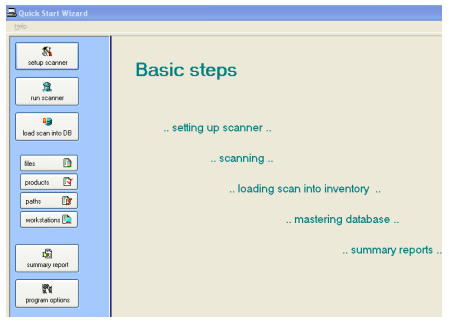
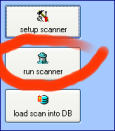 If you are using the demo version, the scanner will display the message saying "Not registered version"", which is true – click "OK". If you are using the demo version, the scanner will display the message saying "Not registered version"", which is true – click "OK".
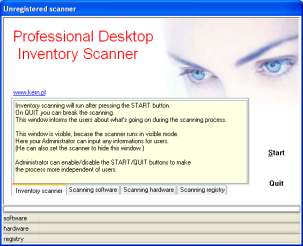 Information about scanning is displayed in the scanner status bar – scanning time depends on the workstation and can range between several seconds to several minutes. Information about scanning is displayed in the scanner status bar – scanning time depends on the workstation and can range between several seconds to several minutes.
- The scanner window disappears without any additional messages, which means that the scanning process is complete and the scanning results are stored in the report file (scan file).
- In the Quick-Start Wizard window, click “load scan into DB” – you will see the window of loading the scanned data to the database.
- Click "Load scans to database" to load your scanned data to the database.
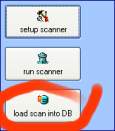
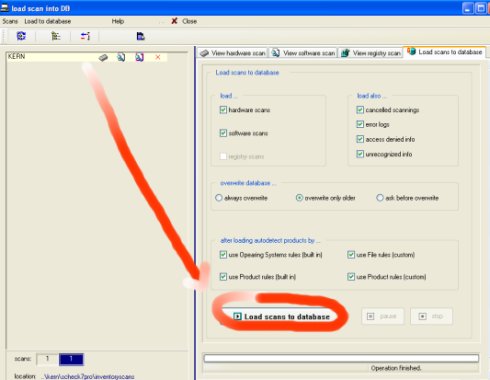 initial report on your workstation. initial report on your workstation.
|
|
|
|
|
 |
|
|
|
|
|
|
|
|
|
 |
|
|
|
Send your question:
|
|






 other questions ...